Monday, 1 August 2022

Process Demand forecasting AX D365 FO

Take on newly created item and adjust the on-hand inventory for one of the materials

Post the adjustment journal for product D0003 to adjust the inventory level for that product to 0 (zero).

1. Select Inventory management > Item > Inventory adjustment.

2. Select journal 00080.

3. Select Post.

Create a demand forecast

Create a demand forecast for product D0003.

1. Select Product information management > Products > Released products.

2. Filter on product D0003.

3. On the Plan tab, in the Forecast group, select Demand forecast.

4. Select New.

5. On the forecast line, set the following values:

●Model: CurrentF

●Sales quantity: 200

6. Select Save.

7. Select Allocate forecast.

8. In the Allocate forecast dialog box, set the following values:

●Method: Period

●Per: 1

●Unit: Month

●End: One year from the current date

9. Select OK.

The Allocation section now shows the monthly forecast for product D0003.


Run master planning

1. Select Master planning > Workspaces > Master planning.
2. In the Plan field in the upper-left corner, select Master.
3. On the Master planning tile, select Run.
4. In the Master planning dialog box, select OK.


1. Select the Planned orders tile to show the list of planned orders.
2. Filter on product D0003. Select Item number as the context.


3. In the filtered list, select the first planned order.
4. Select Firm.
5. In the Firming dialog box, set the Update marking option to No. 10 Select OK.


Process the production order

1 Select Production control > Production orders > All production orders.

2    Filter on item number D0003.

3    On the Production order tab, in the Process group, select Release to release the production order.

4    On the Production order tab, in the Process group, select Start to start the production order.

5    In the Start dialog box, on the General tab, set the following values:

      Automatic route consumption: Never

      Post picking list now: No

      Post route card now: No


6. Select OK.
7. On the View tab, in the Journals group, select Picking list to open the Picking list journal page.
8. Select the journal number to open the Journal lines section.
9. In the Journal lines section, adjust the Consumption value for the following line items:
●On the line for item M0001, change the value from 200 to 203.
●On the line for item M0002, change the value from 200 to 201.
●On the line for item M0003, change the value from 200 to 205.
●On the line for item M0004, change the value from 200 to 202.
●On the line for item M0007, change the value from 200 to 210.


10. Select Post.
11. In the dialog box for posting the journal, select OK.
12. On the View tab, in the Journals group, select Job card to open the Job card journal page.
13. Select New.
14. In the Create production journal dialog box, in the Name field, select Job. 15 Select OK.
16. Select New to create a journal line for each of the four jobs. Use the following values.

Assembly
    ●Hours: 52
    ●Good quantity: 200
Testing
    ●Hours: 38
    ●Good quantity: 200
TestOpr
    ●Hours: 45
    ●Good quantity: 200
Packing
    ●Hours: 15
    ●Good quantity: 198
    ●Error quantity: 2
    ●End: Yes
    ●Operation complete: Yes
    ●Production reported as finished: Yes


17. Select Post.
18. In the dialog box for posting the journal, select OK.
19. On the Production order tab, in the Process group, select End to end the production order.

Understanding Demand forecasting AX D365 FO

Demand forecasting is modular and easy to configure. You can turn the functionality on and off by changing the configuration key at Trade > Inventory forecast > Demand forecasting.


Demand forecast variant conversion limitation

Unit of measure (UOM) per variant conversion is not fully supported when generating demand forecast if inventory UOM is different than the demand forecast UOM.

Generating forecast (Inventory UOM > Demand forecast UOM) uses product UOM conversion. When loading historical data for the demand forecast generation, the product level UOM conversion will be always used when converting from inventory UOM to the demand forecast UOM, even if there are conversions defined on the variant level.

Item allocation keys

Item allocation keys establish groups of items. A demand forecast is calculated for an item and its dimensions only if the item is part of an item allocation key. 

An item and its dimensions must be part of only one item allocation key if the item allocation key is used during forecast creation.

To create item allocation keys and add a stock keeping unit (SKU) to them, follow these steps.


1.    Go to Master planning > Setup > Demand forecasting > Item allocation keys.


2.    Either select an item allocation key in the list pane, or select New on the Action Pane to create a new one. On the header for the new or selected key, set the following fields:

·         Item allocation key – Enter a unique name for the key.

·         Name – Enter a descriptive name for the key.

3.  Follow one of these steps to add items to the selected item allocation key or remove item

On the Item allocation FastTab, use the New and Delete buttons on the toolbar to add or     remove items as needed. For each row, select the item number, and then assign dimension values in the other columns as you require. Select Display dimensions on the toolbar to change the set of dimension columns that is shown in the grid. (The value in the Percent column is ignored when demand forecasts are generated.)

 If you want to add a large number of items to the key, select Assign items on the Action Pane to open a page where you can find and assign multiple items to the selected key.

Set up Demand forecasting parameters

Use the Demand forecasting parameters page to set up several options that control how demand forecasting will work in your system.

Open the Demand forecasting parameters page

To set up demand forecasting parameters, go to Master planning > Setup > Demand forecasting > Demand forecasting parameters. Because demand forecasting runs cross-company, the setup is global. In other words, it applies to all legal entities (companies).


General settings

Use the General tab of the Demand forecasting parameters page to define general settings for demand forecasting.


Demand forecast unit

Demand forecasting generates the forecast in quantities. Therefore, the unit of measure that the quantity should be expressed in must be specified in the Demand forecast unit field. This field defines the unit that will be used for all demand forecasts, regardless of the usual inventory units for each product. By using a consistent forecast unit, you help ensure that the aggregation and percentage distribution make sense.

Transaction types

Use the fields on the Transaction types FastTab to select the transaction types that are used when the statistical baseline forecast is generated.

Demand forecasting can be used to forecast both dependent demand and independent demand.

For example, if only the Sales order option is set to Yes, and all the items that are considered for demand forecasting are items that are sold, the system calculates independent demand.

However, critical subcomponents can be added to item allocation keys and included in demand forecasting. In this case, if the Production line option is set to Yes, a dependent forecast is calculated.

You can override transaction types for one or more specific item allocation keys by using the Item allocation keys tab. That tab provides similar fields.


Override default forecast algorithm parameters globally

Default forecast algorithm parameters and values are assigned on the Demand forecasting parameters page (Master Planning > Setup > Demand forecasting > Demand forecasting parameters). 

However, you can override them globally by using the Forecast algorithm parameters FastTab on the General tab of the Demand forecasting parameters page. (You can also override them for specific allocation keys by using the Item allocation keys tab on the Demand forecasting parameters page.)

Use the Add and Remove buttons on the toolbar to establish the required collection of parameter overrides. 

For each parameter in the list, select a value in the Name field, and then enter an appropriate value in the Value field. All parameters that aren't listed here will take their values from the settings on the Demand forecasting parameters page. 

Set forecast dimensions

A forecast dimension indicates the level of detail that the forecast is defined for. Company, site, and item allocation key are required forecast dimensions. You can also generate forecasts at the warehouse, inventory status, customer group, customer account, country/region, state, and/or item level, and at all item dimension levels. Use the Forecast dimensions tab on the Demand forecasting parameters page to select the set of forecast dimensions that is used when the demand forecast is generated.

At any time, you can add forecast dimensions to the list of dimensions that are used for demand forecasting. You can also remove forecast dimensions from the list. However, manual adjustments are lost if you add or remove a forecast dimension.


Generate a statistical baseline forecast

When you create a baseline forecast, you must first specify the parameters and filters that are used in the calculation.

For example, you can create a baseline forecast that estimates demand based on transaction data from the past year for a specific company, for the coming month, and for a selected group of items.

To generate a demand forecast, go to Master planning > Forecasting > Demand forecasting > Generate statistical baseline forecast.

The forecast bucket can be selected at forecast generation time. The available values are: Day, Week, and Month.

The number of buckets to generate a forecast for is set in the Forecast horizon field.


When the forecast strategy is set to Copy over historical demand, the end of the historical horizon is ignored. The system copies the number of buckets specified in the Forecast horizon field to the forecast demand, starting from the date set in the From date field under Historical horizon. By copying historical demand from a certain date forward, production planners can make the plan for the next quarter in two ways:

·         By copying the demand from the same quarter last year.

·         By copying the demand from the previous quarter.

To prevent confusion in the production plans, a certain number of forecast buckets can be frozen. This number is set in the Freeze time fence field. 


On the Adjusted demand forecast page, the cells for the frozen buckets are disabled, to give a visual indication that those values should not be changed.

The start date for the baseline demand forecast doesn’t have to be the current date or a date in the future.

To set a different start date, use the Baseline forecast start date - From date field. For example, in June, users can generate a forecast for the next year. Because the forecast buckets between the end of historical demand and the start of the baseline are missing, the predictions might not be accurate.

The Baseline forecast start date - From date field has to be set to the beginning of a forecast bucket, for example, in the United States, a Sunday if the forecasting bucket is the week. The system automatically adjusts the Baseline forecast start date - From date field to match the beginning of a forecast bucket.

The Baseline forecast start date - From date field can be set to a date in in the past. In other words, it is possible to generate a demand forecast in the past. This is useful, because it lets users adjust the forecast service parameters so that the statistical forecast generated in the past matches the actual historical demand. Users can then continue using these parameter settings to generate a statistical baseline forecast for the future.

Manual adjustments made in previous demand forecasting iterations can be automatically applied to the new baseline forecast if the Transfer manual adjustments to the demand forecast check box is selected. If the check box is cleared, the manual adjustments are not added to the baseline forecast – but they are not deleted. Manual adjustments made to a forecast can be deleted only at forecast import time, by clearing the Save the manual adjustments made to the baseline demand forecast check box. Manual adjustments are saved at authorization time. Therefore, if a user makes manual adjustments to the forecast, but doesn’t authorize the forecast back to Supply Chain Management, the changes are lost. For more information about manual adjustments and how they work,

A demand forecast generation can have a name and comments to help users identify the forecast that has been generated. These values are visible in forecast generation history on the Statistical baseline forecast generation history page.

The intercompany planning group, item allocation keys, and other filters can be applied at forecast generation time. These can be used to improve performance or to split the data into manageable chunks. However, note that a demand forecast is not generated for the members of any item allocation key that is not associated with an intercompany planning group, even if the item allocation key is selected in the query.

Wednesday, 20 July 2022

Sales Commissions: D365 FO

Commission Setup

The five essential setups for commission. These setups will work together to determine what items, and customers are included in the calculation, how to divide commission if they need to be shared across a sales group, how the commission should be posted and much more.

Commission On Customer Groups

The first setup is the commission customer group. The commission customer group can be used identify customers who should be included to the commission calculation. You will see later in the “Commission Calculation” section that you can choose to include all customers, a group of customers, or a single customer that should be included in the commission calculation. Grouping customers together using the commission customer group is the most common way to set up commissions.

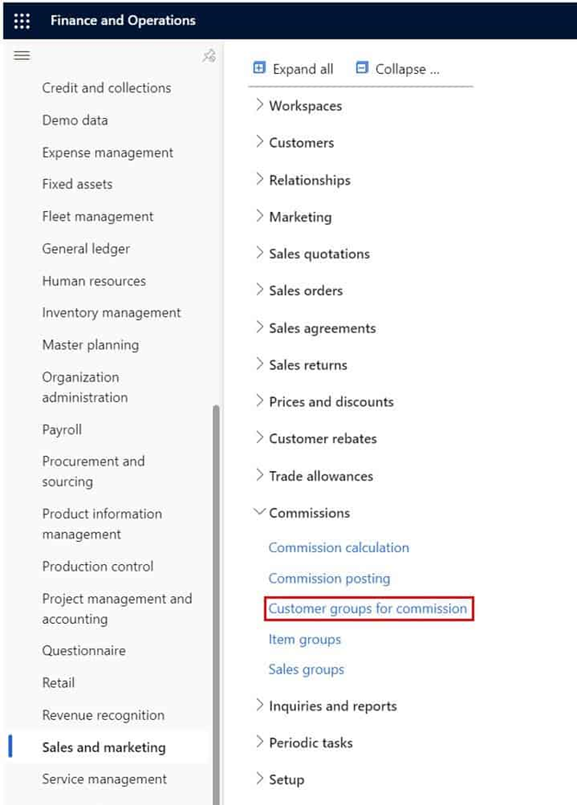
·         To create a commission customer group, navigate to Sales and marketing > Commissions > Customer groups for commissions.


·         Click the “New” button.

·         Give the group an ID and a name and click the “Save” button.


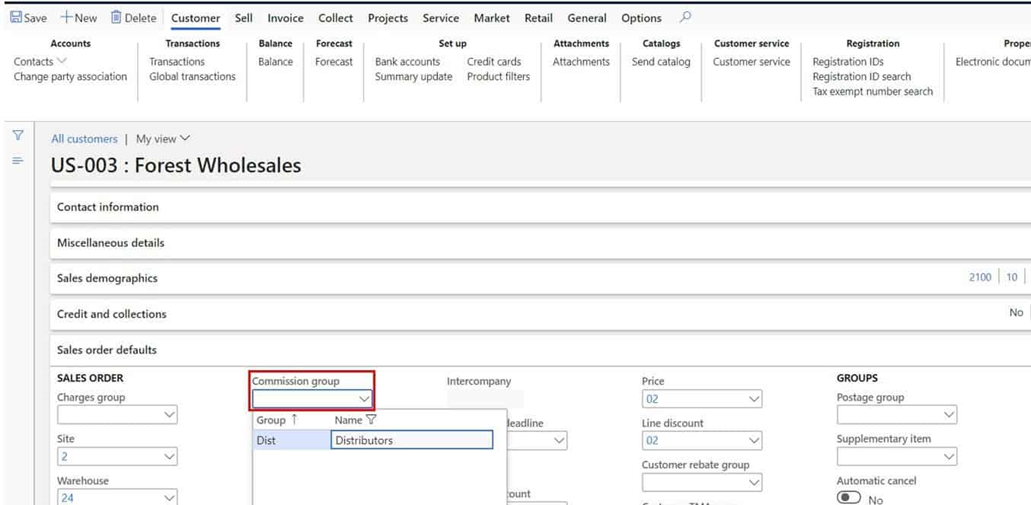
The next step is to assign the commission customer group to the customers where we want to calculate commission.

·         Navigate to Sales and marketing > Customers > All customers.


In this example I will assign it to one customer but in reality, you would assign it to all customers you wanted to include in the commission calculation.

·         Click the customer ID hyperlink to open the customer master record.

·         In the “Sales order defaults” fast tab in the “Commission group” field select the commission customer group you created above.


Commission On Item Groups

Commission item groups are how you can identify the items that are eligible for commissions.

·         To create a commission item group, navigate to Sales and marketing > Commissions > Item groups.


Click the “New” button and give the group and ID and a name.


The next step is to assign this commission item group to all the items that are eligible for this commission calculation. 

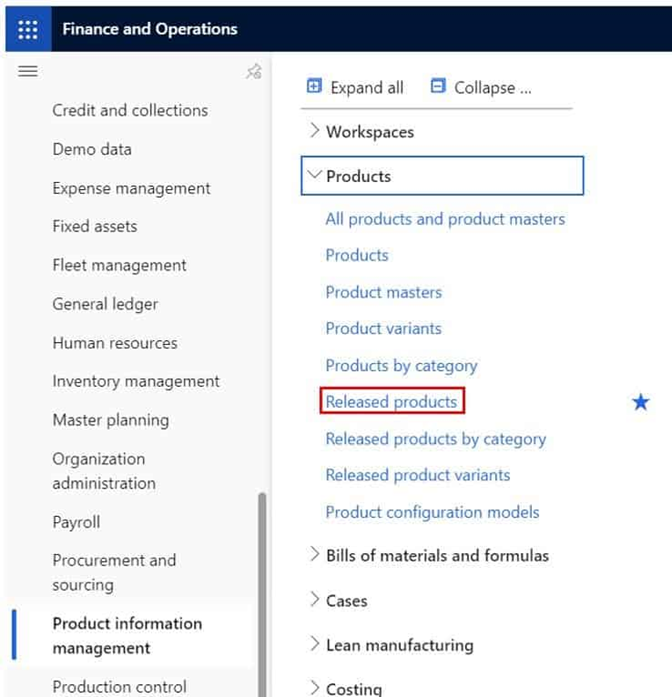
·         Navigate to Product information management > Products > Released products.


Click the item ID hyperlink to open the item master.


In the “Sell” fast tab in the “Commission group” field select the commission item group we created above.


Sales Groups

The sales groups are used to identify groups of sales representatives. This is usually by sales territory but there could be cases where sales representatives in different groups overlap. The sales group is used in the commission calculation to determine which group of sales representatives the commission should go to.

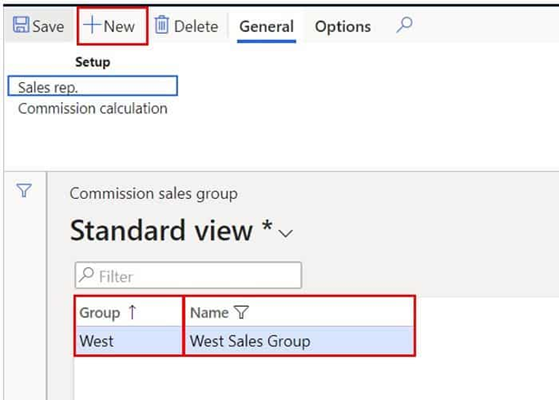
·         To create commission sales group, navigate to Sales and marketing > Commissions > Sales groups.


·         Click the “New” button to create a new group.

·         Give the group an ID and a name and click save.


In the “General” tab in the ribbon click the “Sales rep.” button.


In this form we need to identify the sales representatives that are part of this sales group. 

·         Click the “New” button to add a sales representative to the sales group.

·         In the “Name” field select the representative. 

In the commission field identify how the commission should be split. In this example I have two sales representatives and the senior representative will be receiving 60 percent of the commission while the junior representative will be receiving 40 percent of the commission.


The last step is to assign this sales group to all the customers that this sales group is responsible for and will receive commissions for selling to.

·         Navigate to Sales and marketing > customers > All customers.


In the “Sales order defaults” fast tab of the customer master there is a field called “Sales group”. Select the sales group we created above.


Commission Calculation

In the commission calculation we put all the pieces together and define how the commission should be calculated.

·         To create a commission calculation, navigate to Sales and marketing > Commissions > Commission calculation.


·         Click the “New” button.

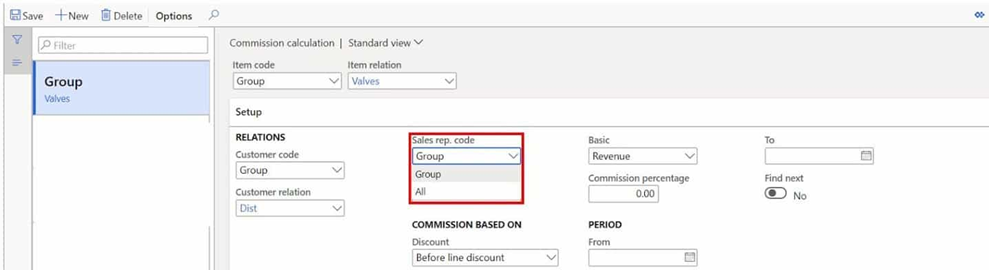
·         In the “Item code” field we can define if the commission should be calculated for a single item (Table), a group of items (Group), or for all items (All). In this example we want it to calculate only for items assigned to the commission item group that we created in the section above.


In the “Customer code” field we can define if the commission should be calculated for a single customer (Table), a group of customers (Group), or for all customers (All). In this example we want it to calculate only for customers assigned to the sales group that we created in the section above.


In the “Sales rep. code” field we can define if the calculation should be calculated for a group of sales representatives (Group), or all representatives (All). In this example we want it to calculate only for the sales group we created above.


·         In the “Discount” field we can define if we want the commission to be calculated “Before a line discount”, “After a line discount”, or “After total discount”. In this case I want the commission based on the amount before any discount is applied.

·         The “Basic” field determines if the commission calculation should be based on pure revenue or only on the sale margin (difference between cost and sales price).

·         The “Commission percentage” takes whatever you defined in the “Discount” and “Basic” fields multiplies it by the percentage you define here to get your commission.

·         The “From” and “To” fields let you define a validity period. So, if you revise your commission structure yearly you can set a validity period and set up a new commission for next year’s commission structure whenever you know it.

·         The “Find next” flag if enables tells the system to keep looking for another applicable commission after this one. The system looks for the most granular level commission it an find and then if the “Find next” flag is set to “No” it stops looking if it is set to “Yes” and there is another commission that is applicable it will include that commission as well.


Commission Posting

Now that the commission calculation is set up, we need to tell Dynamics 365 where to post the commission. 

·         Navigate to Sales and marketing > Commissions > Commission posting.


·         In the commission posting form you are able to use combinations of items, item groups, sales categories and customers, customer groups, and all customers to define main accounts that the commission should post to. 

·         The commission tab will be the debit and the commission offset tab will be the credit.


Process Commissions

Commissions are calculated upon sales order invoice so we will go through and process a sales order all the way through invoicing and then look at the resulting calculation and ledger postings for commissions.

·         Navigate to Sales and marketing > Sales orders > All sales orders.


·         We will create a new sales order by clicking the “New” button and select same customer that we assigned our commission customer group and sales group to.

·         Click “Ok” to create the sales order.


In the sales order line, I will select the item that we assigned the commission item group to. Notice that the net amount is $150,000.


·         Next I will fast forward through the shipping process and go ahead and invoice the sales order.

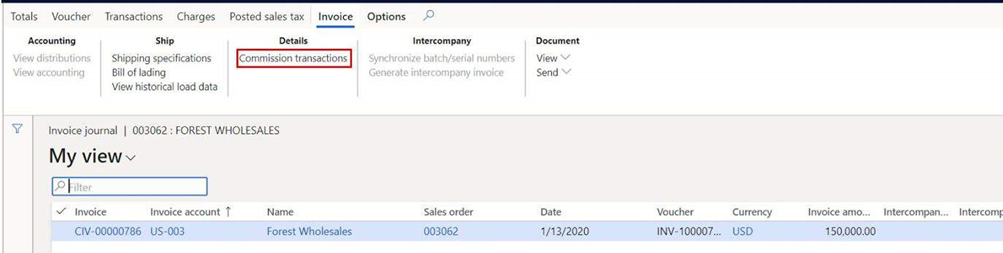
·         After we have posted the invoice, we can view the commission calculation by clicking the “Invoice” button in the “Invoice” tab in the ribbon.


Click the “Commission transactions” button.


Here we can see that Aren received $3,000 and  Alisa received $4,500. The calculation was 150,000 * 5% = $7,500. Then there was a 60/40 split between Aren and Alisa where Alisa received 60% and Aren received 40%. So, 7,500 * 60% = $4,500 and the remaining $3,000 goes to Aren.


Now we can also view the commission posting by going back to the invoice journal and clicking on the “Voucher” button.


As you can see, we have a debit of 7,500 to 602150 and a credit to 201110.


How To Get Commissions Reports

Now that we have our commissions set up and working correctly, we can track the sales commissions using a standard Dynamics 365 SSRS report called “Commission transaction list report”.

·         Navigate to Accounts receivable > Inquiries and reports > Commission transaction list report.


·         Click “Ok” to run the report.

·         As you can see, we have all our commissions calculations broken out by sales representative and the total at the end of the report.